Why app options or upload fields don't show on your Shopify theme

Short answer
If an app's product options or upload fields don't show on your Shopify theme, the app embed is usually switched off in that theme. In Online Store > Themes, click Edit theme on your live theme, open App embeds in the sidebar, turn the app on and click Save. Then reload a live product page.
If that doesn't fix it, work through the checks below in order. We make Infinite Options and Uploadery, and "my fields aren't showing" is the most common question we get, so this is the order our support team uses.
App embeds vs app blocks, in plain terms
Apps that add something to your storefront plug into your theme in one of two ways. Shopify's guide to apps in themes defines them like this:
- App embeds are "app-provided elements that float or display as an overlay in your theme, or add code to your online store without being visible to your customers." Embeds work with any theme, including older (vintage) themes.
- App blocks let you "add app functionality exactly where you want to use it in your theme." You add, move and remove them in the theme editor like any other block. App blocks only work with Online Store 2.0 themes, which Shopify calls compatible themes.
For options and upload apps, the embed loads the app on your storefront, and the block (if the app has one) decides exactly where the fields sit on the product page. Both Infinite Options and Uploadery work with the embed alone: once it's on, fields appear above the Add to cart button. The block is optional, for when you want them somewhere else.
Both settings belong to one theme. Shopify notes that if you change your published theme, you need to re-activate your apps in the new theme because they won't be active by default. That's why fields so often vanish right after a theme switch or update. We cover the full checklist for that in how to change your Shopify theme without breaking your apps.
The 30-second fix: turn on the app embed
- In Shopify admin, go to Online Store > Themes.
- Find the theme marked as your current (published) theme and click Edit theme.
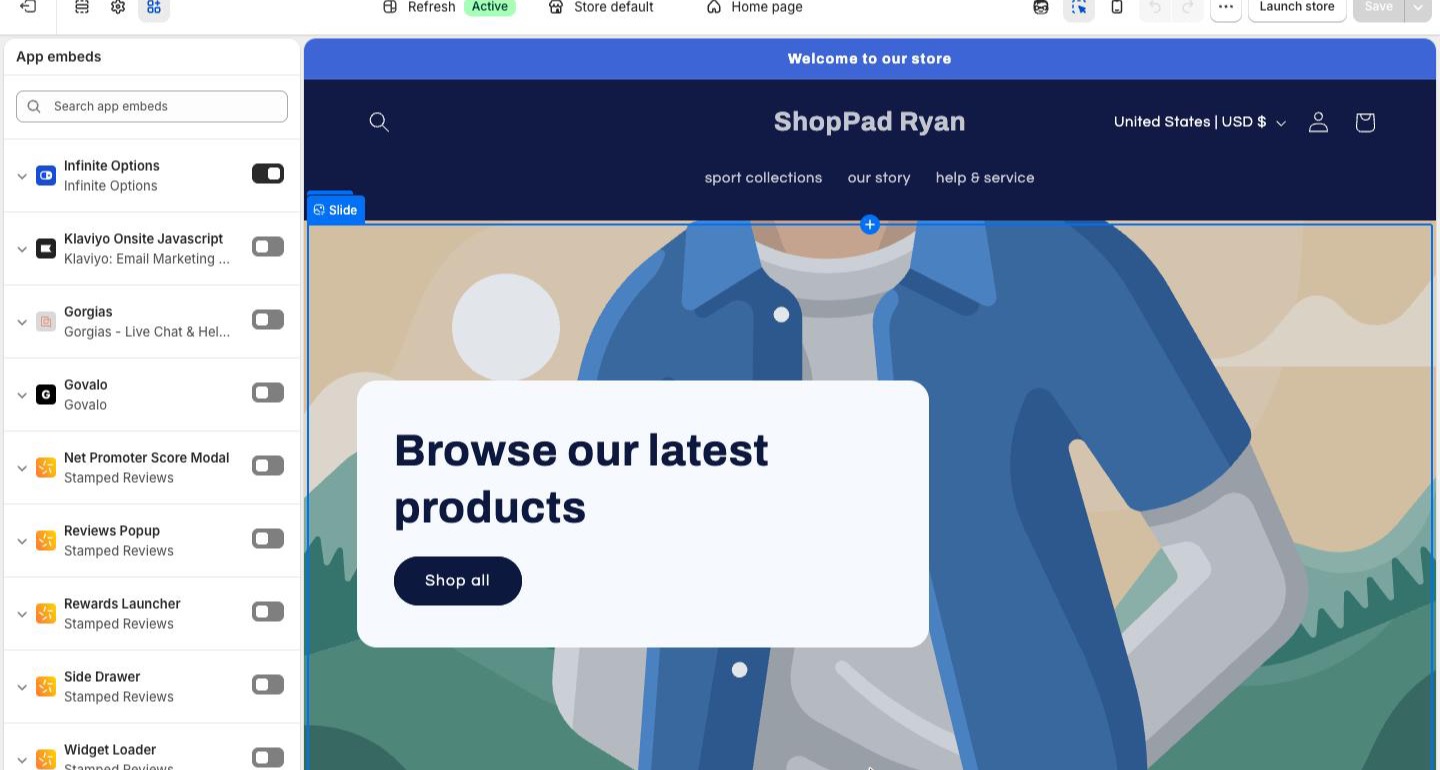
- In the left sidebar, click the App embeds icon.
- Find the app (use the search bar if you have many) and switch its toggle on.
- Click Save.
- Open a live product page in a new tab and reload it.
Troubleshooting, step by step
1. You set up a different theme from the one you're viewing
Only one theme is published at a time, but most stores keep several in their theme library. It's easy to enable the embed on a copy and then look at the published theme. Check the theme name next to Edit theme before you change anything. If you're preparing an unpublished theme, enable the embed (and add any blocks) in that theme too, before you publish it. To test, use the live product URL on your published theme, not a product in the Shopify admin.
2. The app embed is off
Even on the right theme, the toggle may be off. This usually happens after switching to a different theme, or if someone switched it off while testing. Turn it on and remember to click Save: the toggle alone doesn't publish the change.
3. The app block is missing or in the wrong place
If you use the app block for placement, it has to be in the product template that the product actually uses. Many stores have alternate product templates (for example product.engraving or product.preorder), assigned on the product's page in admin under Theme template. Each template is edited separately, so a block added to the default template won't appear on products using another one. In the theme editor, use the page selector at the top to open each product template you use and check the block is there, inside the main product section. With Uploadery, add only one Uploadery Fields block per template.
4. The product isn't matched by the app's rules
Options apps and upload apps decide which products get fields using rules: all products, specific products, or by tag, type or vendor. Common misses:
- Tags must match exactly. A rule for
engravingwon't catch a product taggedEngravingwith a trailing space or a different spelling. - The product is excluded. An "is not" rule or exclusion tag can quietly remove it.
- The product is a draft or not on the Online Store channel. Draft products aren't on your storefront, so there's nothing to test.
- The set is empty. An option set with no fields shows nothing.
5. Conditional logic is hiding the field
If a field only appears when another choice is made (for example "Add engraving? Yes" reveals a text box), check the trigger value matches exactly and both fields are in the same set.
6. Quick view, quick add, page builders or a custom storefront
Quick view popups and quick add buttons on collection pages often add to cart without loading the full product form, so app fields don't appear there. The fields show on the product page itself. Page builders can replace your theme's product template with their own layout; some need an extra step (Infinite Options has a GemPages guide, for example). Headless and fully custom storefronts don't load theme app extensions at all, so embeds and blocks don't apply there.
7. Slow loading, or the script is blocked
Apps load after the page itself, so in some themes fields pop in a moment late or seem missing on a slow connection. Both of our apps have help docs on load timing (Infinite Options, Uploadery). Less often, another app's script, a theme optimization setting, or a cookie consent banner stops an app's script from running. A quick test: open the product page in a private window, accept the cookie banner, and see if the fields appear. If they do, the cause is something on the page rather than your app settings.
8. Still stuck: ask for help
Contact the app's support team with the product URL and the name of the theme you're using. Both Infinite Options and Uploadery also offer an Expert Install Service, where our team sets the app up on one theme for you.
Symptom, likely cause, fix
| Symptom | Likely cause | Fix |
|---|---|---|
| Fields gone after switching to a new theme | App embed not on in the new theme | Turn on the app embed in the new theme and Save; re-add any app blocks |
| Fields show in one theme but not the live store | Set up on an unpublished theme | Repeat the setup on the published theme |
| Fields show on some products, not others | Rules don't match, or different product templates | Check tags and exclusions; add the block to each product template you use |
| Fields missing on every product | Embed off, or the option set is empty | Turn on the embed; add fields to the set |
| One field never appears | Conditional logic | Check the trigger value matches exactly |
| Fields missing in a popup or collection page | Quick view or quick add skips the product form | Send customers to the product page for customizable items |
| Fields appear late or only sometimes | Load timing, or a script blocked | Adjust load timing; test without other apps or the cookie banner |
Infinite Options notes
For Infinite Options, the app embed is the on/off switch. With it on, your option sets appear above Add to cart on every product they're assigned to. Add the Infinite Options app block only if you want the fields in a specific spot. A few older installs used a script tag rather than the embed; if that's you, add the app block. On Online Store 2.0 themes, the optional Dynamic Bundling Price Block updates the product page price when customers pick paid add-ons.
Our "my options are not showing" guide covers the same checks, including load timing. If options show on the product page but not in the cart, see displaying option selections in the cart. Our Expert Install Service covers adding the app to one theme, styling and showing selections in order emails. Comparing options apps more broadly? See Shopify product options apps compared.
Uploadery notes
For Uploadery, enable the Uploadery app embed and Save, and upload fields appear above Add to cart. For exact placement, add the Uploadery Fields block to your product template, once per template. As our install guide puts it, the setup only needs to be done once for each theme you use, so do it again when you switch themes.
If fields show on some products but not others, check how the upload set is assigned. Assigning by tag is the easiest way to include or leave out products (see assigning upload fields and excluding a few products). Our Uploadery Expert Install Service turns the app on for one theme and adds upload details to the cart and order emails. For the bigger picture on collecting files, see how to let customers upload files on Shopify product pages and letting customers upload a logo or artwork.
FAQs
What is a Shopify app embed?
An app embed is a switch in the Shopify theme editor that loads an app's code or floating elements on your storefront. You find it under the App embeds icon in the theme editor sidebar. App embeds work with any theme, and each theme has its own setting.
What's the difference between app embeds and app blocks?
An app embed turns an app on for a theme and works with any theme. An app block places the app's content in a specific spot in a section and only works with Online Store 2.0 themes. Options and upload apps usually need the embed on, with the block optional for placement.
Where are app embeds in Shopify?
Go to Online Store > Themes, click Edit theme on your theme, then click the App embeds icon in the left sidebar. Toggle the app on and click Save.
Why did my app fields disappear after changing themes?
App embeds and app blocks are saved per theme, and Shopify doesn't activate them in a new theme by default. Open the new theme in the theme editor, turn the app embed back on, re-add any app blocks to your product templates, and Save.
Why don't app options show in quick view?
Quick view popups and quick add buttons often add products to the cart without loading the full product form, so app fields don't appear there. Customers need to open the product page to see and fill in the fields.